

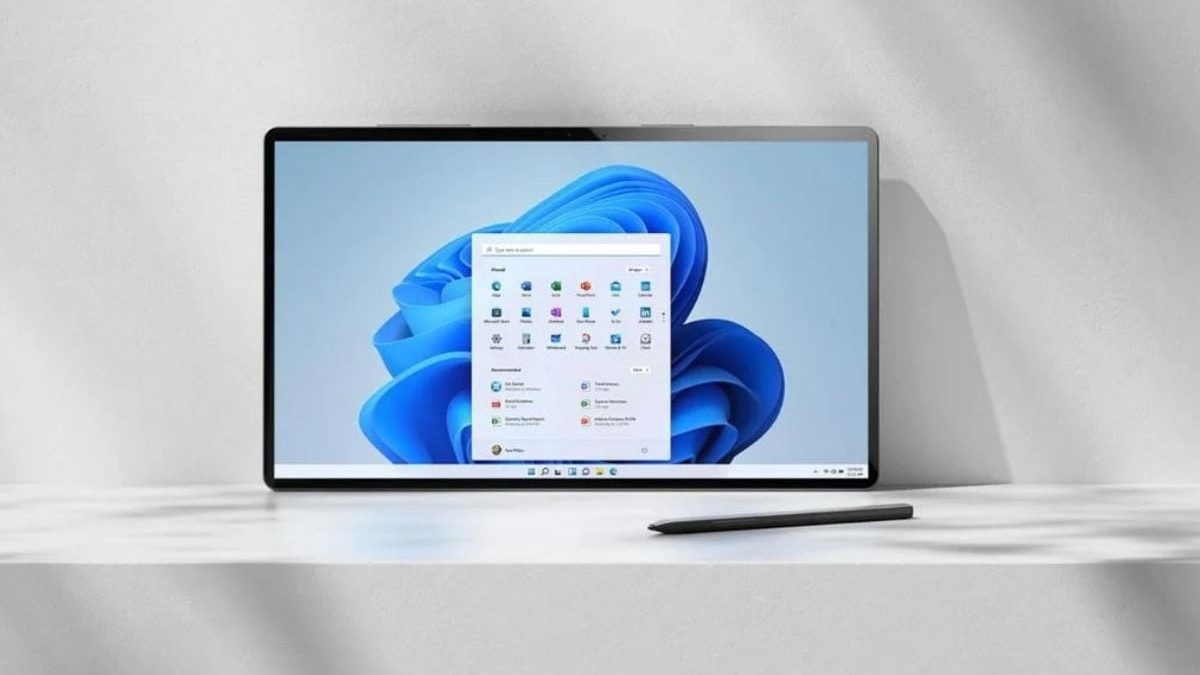
Microsoft has published the preview build Windows 11 Insider 26220.7271 for Windows 11 version 25H2 in the Insider program, in which the developers have dedicated themselves above all to improved clarity. This also includes adjustments in the context menu, which should now be more accessible. However, the classic form does not return with this.
Windows 11 Insider 26220.7271 Point of contention
One of the biggest criticisms of the appearance of Windows 11 was the context menu, which many users found cumbersome and too large. More than four years after the official launch of Windows 11 in October 2021, Microsoft has taken up this point and significantly streamlined the menu.
For example, the menu, which has occupied a large part of the screen for many users so far, should be much more compact in the future. However, if you were hoping to get back the context menu familiar from Windows 10, you will be disappointed – the distances between the individual menu items will still remain the same. Microsoft achieves the new, more compact design primarily by rearranging some menu sections, as well as by grouping related actions. In the future, file-related functions such as “Compress file” or “Copy as path” will be combined in the new flyout menu “Manage File“. However, Microsoft points out that the name of this menu may still change in future insider updates.
The new structure can therefore mean more clicks for the user under certain circumstances. It seems that with the changes, the software giant wants to continue the shared context menu approach that the company is working on in the context of WinUI apps.
Other new features in the File Explorer
The adjustments to the context menu are not the only changes of the new preview: for files stored in OneDrive or other cloud services, the options “Always keep on this device” and “Free up space” are now in the nested menu of the respective cloud provider.
With the restructuring, Microsoft says it wants to reduce the space required for rarely used actions. However, the large distance between the individual menu entries does not change here either – if you want to reduce this, you still have to use special tools.
The changes in the context menu are not the only changes, in addition to the adjustments, Microsoft is also experimenting with a new function in File Explorer. The application should be preloaded in the background to enable a faster start. This option can be deactivated if necessary or if there are problems in the folder options of the file Explorer under “View” via “Preload Window”.
Improved recovery
With the new iteration, Microsoft is also introducing point-in-time recovery for Windows, which is available in the Insider beta and Dev channels. With this function, users should be able to restore their system to an earlier state, including apps, settings and user files, faster and more conveniently. This is to reduce downtimes and make troubleshooting easier.
Fluid Dictation also in voice control
After the introduction of Fluid Dictation for Voice Access users, the function is also available for voice control users on devices with Neural Processing Unit (NPU) with the update. Fluid Dictation is intended to make voice-based text input more fluid and intelligent by recognizing grammar, punctuation and filler words already during speech and correcting them automatically if necessary, which in turn should reduce the effort in post-processing. Thanks to smaller language models (SLMs), the processing takes place locally on the device, which is intended to protect private and sensitive data.
Improved integration of Android mobile devices
After Android users have already been given the opportunity to continue Spotify tracks from their smartphone to their PC with the latest Windows 11 builds, owners of Vivo smartphones can now also proceed with their browser activities in this way. The prerequisite here is the use of the Vivo browser on the mobile phone.
Users of Android devices from the manufacturers Honor, Huawei, Oppo, Samsung and also Vivo can also edit online files that have been opened in the M365 Copilot app on the smartphone directly on the PC. Word, Excel and PowerPoint files are opened in the corresponding application on the PC, provided the software is installed. If this is not the case, this is done in the default browser.
FSE will be further expanded
In addition, Microsoft is expanding the Xbox full-screen display (FSE) to other form factors under Windows 11. The function was developed with a console-like navigation in mind and is intended to provide a clear, distraction-free interface for playing with controllers. It will be gradually rolled out on the Dev and Beta channels for Windows Insiders who are registered as Xbox Insiders at the same time.
Numerous bug fixes
In addition to the innovations, Microsoft has also eliminated numerous bugs with the new Insider build. This fixed an issue where the taskbar got stuck after certain notifications. Also, an error was corrected, as a result of which the battery icon in the taskbar unexpectedly received its own background. Another problem, in which the Internet connection was lost after waking up from standby mode, should now also be a thing of the past. In addition, the bug was fixed, in which the message “Unsupported video card detected” incorrectly appeared on certain games, although a compatible GPU was used.
Available now
The Preview build 26220.7271 is now available to members of the Dev and Beta channels of Windows 11 version 25H2.
